From Hello World to a Pomodoro Timer
Engineering

As developers, we will prefer to reduce repetitive tasks by automating them thereby saving time and focusing on other tasks. We do this by using existing scripts or implementing our own.
A shell is a program which provides an interface for users to interact with their operating system. Bourne-Again Shell (Bash), Bourne Shell (sh), Jorn Shell (ksh), Z Shell (zsh) are all types of shells.
This article will be using Bash which is a popular and free shell that comes with Unix-based operating systems. We will put our commands into a script and then running the script will execute the commands in the same way as when we run them line by line in the terminal.
At the end of the article, we will implement Pomodoro technique as a bash script.
Bash scripts are popularly saved as .sh extension though it could be saved without any extension. Another important feature of bash script is the use of shebang (#!) as the first line of the script.
What follows next to the shebang is the path to where the bash shell is located.
You can use which bash to return the location if you do not know where to find the shell location.
Hello World in a bash script
Create a file
nano hello_world.sh
2. Provide the content below
#!/bin/bash
echo "Hello World!"
Save with Ctrl X combination and Y to confirm and hit the Enter key to close the file.
Add execute permission to user (visit File Permissions in Linux — How to Use the chmod Command for comprehensive details)
chmod u+x hello_world.sh
Run the script using any of the options
bash hello_world.sh
./hello_world.sh
The output shows
Hello World!
The new statement is echo “Hello World!”, echo command displays the string is passed to it in the standard output.
Taking User Input
Instead of displaying the same message repeatedly, we will prompt the user of the script for a message and then display it in the standard output.
Create the file
nano welcome_user.sh
Update with the content
#!/bin/bash
read -p "Welcome, provide your full name: " fullname
echo "Hello World!, $fullname"
Follow Steps 3, 4, and 5 in the earlier task: Hello World in a bash script to save and execute the script.
The output should be a prompt asking for your full name
Welcome, provide your full name:
Upon entering your name and hitting the Enter key, the next line should display
Hello World, Mary Jonah
There are 2 new things this script introduces:
read -p:
The read command takes the text the user provided in the terminal and puts it in the variable fullname
The -p option was included so prompt text which explain what the user input is about is displayed to the user
$fullname:
$variable_name refers to the value in the variable
But we enclose it in double quotes to view its contents
Functions in a bash script
Functions are made up of several statements that can be called multiple times.
Create a file
nano display_stars.sh
2. Populate the content with
#!/bin/bash takeNumStars() {
read -p "Enter the number of stars you would like to see: " numStars
} printStars() {
for ((i=0; i<numStars; i++)); do printf "*"
done
printf "\n"
}
takeNumStars
printStars
In bash a function does not require any special keyword to classify it as such. It takes a name, a pair of parentheses and curly braces which enclose the statements.
In the code above takeNumStars uses the read keyword to take the number of stars the user expects to see.
Then the second function printStars uses C-styled for loop to iterate the number of times while printing the star on each iteration. Users of other languages may find this style very similar to how for loops are defined in what they use.
Use printf to display all of the stars on a single line as it does not include a new line character at the end of its output as compared to echo and it also translates “\n” to a new line character after we complete the printout.
To call the functions, we write out their names and the execution will happen in the order they are listed.
POMODORO CLI
The Pomodoro Technique is a popular framework used by many to get work done within a concentration period and take a breather afterwards.
Let us use our newfound knowledge in bash scripting to write a very very simple pomodoro cli.
The only prerequisite is to install kdialog which allows one to display dialog boxes. It can be installed using the command sudo apt install kdialog
Script
#!/bin/bash # Install zenity using command: sudo apt-get install zenity focus_seconds=1500 # in seconds
break_seconds=300 # in seconds
show_popup_text() { zenity --info --title="Pomodoro Timer - $1 Period" --width=200 --height=50 --text="$2"
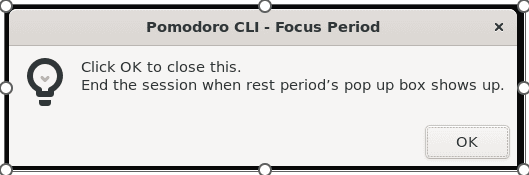
} while true; do show_popup_text "Focus" "Click OK to close this.\nEnd the session when rest period’s pop up box shows up." sleep $focus_seconds
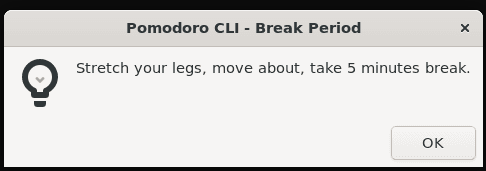
show_popup_text "Break time" "Stretch your legs, move about, take 5 minutes break" sleep $break_seconds
done
Passing arguments
$1 and $2 inside the show_popup_text function represents the first and second arguments which are the title and the text in the popup box we see. This helps us to distinguish the different periods.
Output
Focus Period
Suggested Improvements
You can add the following features:
Allow users to provide their own focus and break periods
Use kdialog’s yesnocancel to ask users if they want to continue running the script after a period is exhausted
Use a progress bar so users can see how far they are in a particular period.
Written by Mary Jonah.


